Picture

Picture
Showing posts with label Hints/Tips. Show all posts

Wednesday, July 3, 2013

Family History Through the Alphabet – Writing

Family-History-Through-the-Alphabet

For 26 weeks I will take you on a family history journey through the alphabet, one letter at a time.  I have decided that each post will be educational in nature, focusing on topics related to resources, methodology, tools, etc.  Although the challenge is complete, there are still some people who are finishing up and Alona, the host, is encouraging others to participate anyway.  Additional information on the challenge, can be found at Take the ‘Family History Through the Alphabet’ Challenge


wThings are a little crazy this week as I migrate my blogs from Blogger to Word Press.  So for this week, I will direct you to a few of my past posts about writing and publishing.  Enjoy!


Share/Bookmark

Wednesday, June 19, 2013

Family History Through the Alphabet – University Libraries

Family-History-Through-the-Alphabet

For 26 weeks I will take you on a family history journey through the alphabet, one letter at a time.  I have decided that each post will be educational in nature, focusing on topics related to resources, methodology, tools, etc.  Although the challenge is complete, there are still some people who are finishing up and Alona, the host, is encouraging others to participate anyway.  Additional information on the challenge, can be found at Take the ‘Family History Through the Alphabet’ Challenge


uUniversity libraries are probably one of the most overlooked repositories when it comes to genealogy research.  But the universities in the states in which your ancestors lived should definitely be on your list of places to look.  These libraries usually contain special collections or archives related to the history of the state as well as the areas surrounding the campus.  Even better, many universities are digitizing their archival collections and making them available to the public for free.

Visiting a university library’s website is probably the easiest route to discover what materials they have in their collection and if they have anything available online.  For example, when you visit the Special Collections & Archives page of the University of Idaho Library’s website, you can see that they have four categories of special collections, including historical photographs and manuscripts.  You can even access their digital collections from this page.

Some libraries also have finding aids written specifically for genealogists or historians, such as Guide to the Genealogical Manuscripts Collection MS 234 at Yale University Library.  The collection is described as “an artificial collection of manuscript and printed genealogical material and genealogies on Connecticut area families, ca. 1600-1980.”  The Yale University Library has also put together research guides on a variety of topics such as Witchcraft and Society in Colonial America.

Probably one of the best digital collections put online by university libraries is Iowa Digital Library, which is a project of the University of Iowa Libraries.  There are so many wonderful things to explore, including maps and atlases, diaries, and photographs.  They even have a great Women’s History section with all sort of neat collections.

I strongly encourage you to add university libraries to your list of places to explore.  When you visit their website, be on the lookout for things like Special Collections, Archives, Manuscript Collections, etc. and check to see if they have finding aids or guides for their collections.  And of course, don’t forget to explore their digital collection if they have one.


Share/Bookmark

Wednesday, June 12, 2013

Family History Through the Alphabet – Timelines

Family-History-Through-the-Alphabet

For 26 weeks I will take you on a family history journey through the alphabet, one letter at a time.  I have decided that each post will be educational in nature, focusing on topics related to resources, methodology, tools, etc.  Although the challenge is complete, there are still some people who are finishing up and Alona, the host, is encouraging others to participate anyway.  Additional information on the challenge, can be found at Take the ‘Family History Through the Alphabet’ Challenge


tTimelines are such a wonderful tool in genealogy research.  You can learn so much by looking at a visual depiction of your ancestors over time.  From research gaps to research analysis, timelines should always to a go-to method for working through tough research problems.

I’ve written about timelines before in the following two posts from 2010, which I encourage you to check out:

Most genealogy software has some sort of timeline feature.  In addition, you can create your own using charting software (such as Edraw and Visio), desktop publishing software, or by using the drawing tools in Word (some people even use Excel).  Sometimes, I just take pencil and paper and sketch out a timeline. 

There are also a few websites out there that let you create and share timelines, including OurTimeLines and TimeRime.  I actually used TimeRime to generate a timeline for my second great-grandmother (see my post Fearless Females – Timeline).

Whenever you find yourself stuck on a research problem, try using a timeline.  Whatever method you choose, be it software or by hand, it may be just the thing to help you bust down that wall!


Share/Bookmark

Wednesday, May 1, 2013

Family History Through the Alphabet – PERSI

Family-History-Through-the-Alphabet

For 26 weeks I will take you on a family history journey through the alphabet, one letter at a time.  I have decided that each post will be educational in nature, focusing on topics related to resources, methodology, tools, etc.  Although the challenge is complete, there are still some people who are finishing up and Alona, the host, is encouraging others to participate anyway.  Additional information on the challenge, can be found at Take the ‘Family History Through the Alphabet’ Challenge


pThis week I want to talk about the Periodical Source Index, also known as PERSI.  It is essentially a subject index to the articles found in the genealogical and historical periodicals held by the Allen County Public Library in Fort Wayne, Indiana.  There are thousands of periodicals in the ACPL collection, some dating back to the mid-1800s.

While originally in book form, the data can now be found in a searchable database.  The database can be accessed through HeritageQuest (usually available through your public library, sometimes accessible from home with your library card number) and Ancestry (with an individual subscription).  Through both providers, you can search by surname, place, topic, or periodical title.  But Ancestry has some additional search capabilities, including searching by article title.  As of today, the database seems to include periodicals published through mid-2009.

HQ-PERSI

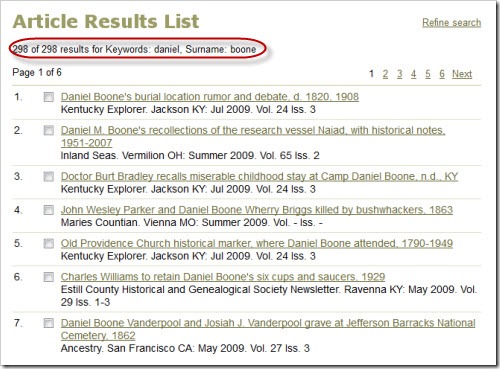
I could literally spend hours walking through a variety of search scenarios, but suffice it to say, you just need to experiment.  However, I will say, that this is not an every-name index, and therefore, searching for Daniel Boone might be a little tricky.  Articles will be classified by the Boone surname, which will return many results.  Unfortunately, trying to narrow down those results by entering the keyword Daniel will only display results where Daniel appears in the title (or another field), thus limiting your results considerably and you may miss some important references.

Boone

DanielBoone

BooneArticle

As you can see from the screenshots, there are 729 results for the Boone surname and 298 for the Boone surname with the keyword Daniel.  You’ll notice that the very first article listed in the Boone-only search, is not listed in the one where Daniel is included as a keyword because Daniel doesn’t appear in the title (or any other field).  That article may be very relevant to research on Daniel Boone, given the dates and places covered by the article.  Just keep this in mind while you are doing your searches.

So what do you do when you find an article of interest?  Well, you could try to locate a copy of the periodical that the article appears in, but when you don’t have ready-access to certain periodicals, that could be difficult.  A better option is request a copy of the article from the Allen County Public Library.  For a relatively inexpensive fee, you can order up to six articles at a time.  Although they ask for six to eight weeks to process the requests, it is usually much quicker.  You can access a PDF of the form here.  Be sure to have it handy when searching PERSI so you know what information to collect from the database.


Share/Bookmark

Wednesday, April 24, 2013

Family History Through the Alphabet – Organization

Family-History-Through-the-Alphabet

For 26 weeks I will take you on a family history journey through the alphabet, one letter at a time.  I have decided that each post will be educational in nature, focusing on topics related to resources, methodology, tools, etc.  Although the challenge is complete, there are still some people who are finishing up and Alona, the host, is encouraging others to participate anyway.  Additional information on the challenge, can be found at Take the ‘Family History Through the Alphabet’ Challenge


oAlthough I could spend weeks writing about organization, I decided on a specific area of organization, that being digital images.  In this post I’ll share with you how I structure my files, how I name them, and how to add metadata for future reference.

Over the last few years, the organizational structure for my digital images has evolved and I am quite content with where it is now.  I won’t bore you with the details of the evolution, or how I’m still in the process of getting all my files named correctly, but I will share with you what I do.

Hierarchy

First, I have a main folder named Family Tree.  This folder holds everything related to my personal genealogy research, including my Legacy Family Tree file, digital images of records, photos, resources (such as digitized county histories and maps), correspondence, reports, forms and templates, articles and stories I’ve written or am working on, etc.  For the purpose of this post, I will focus on my Images & Documents folder, which contains three subfolders, one for records related to my husband’s family, one for my family, and a research folder.  Note:  I named my Images & Document folder with “00 –” at the beginning of the folder name so that it appears at the top of my list.

Hierarchy

The two family folders are organized by surname and will be the focus of this post.  But before I move onto that, I want to share what the Research folder is and how I use it.  The Research folder is further broken down into four subfolders: 

  • Active Research – This folder contains an array of materials that pertain to some of my bigger research problems.  It’s arranged by research problem and the files could be digital images, notes, proof summaries, etc.  If I feel that something has been proven, I will move the files to the applicable family/surname folder.
  • Reports – This folder contains mostly spreadsheets that keep track of records I need to search or pull.
  • Resources & Reference Materials – This folder contains various resources such as digitized county histories, maps, atlases, locality guides, and other information on a particular area.  The subfolders are arranged by state, then county, then city/town (if necessary).  For example, below is my Illinois folder.  Anything that pertains to the state as a whole is in that main folder.  Anything that pertains to one of the three counties goes in the applicable folder.  The Cook County folder also has a subfolder for Chicago.

ILfolder

  • To Process – This folder contains a variety of digital records that I have obtain but have not yet been able to process.  Once they are processed, they will get renamed and moved to the appropriate family/surname folder.

As I mentioned earlier, the family folder (there’s one for me and one for my husband) is broken down by surname.  You’ll notice in the image below that I again use numbers in front of folder titles, again to bring them to the top.  When I don’t know the maiden name of a female, it goes in the Unknown Maiden Name folder.  The Unknowns folder holds a few unidentified photos and some documents from my family papers that I don’t know who they belong to.

Juliefolder

Within these surname folders, there is a Photos folder and all the digital records associated with that surname.  My naming convention is how I keep them organized without have to add yet another layer of folders.

CahilFolder

So now that you’ve seen how my files and folders are structured, let’s turn to the naming convention I use.

Naming Convention

This is the part that has evolved over time and I have found something that works for me and am in the process of updating all of my files to follow the same convention.  At any rate, here is how I name my files:

          LAST, First Middle RIN – Year Record

The RIN is the number assigned to each individual in my database (and will carry over to other programs if I ever switch).  This helps me deal with people of the same name, as well as knowing exactly which person a record matches up to in my database.

So for example, the file name for the 1847 Luxembourg census record for my fourth great-grandfather, Heinrich Schwartz, would look like this:

          SCHWARTZ, Heinrich 10132 – 1847 Luxembourg Census

Another example, using a middle name, would be my grandfather’s death certificate, which would look like this:

          CAHILL, John Francis 96 – 1984 County Death Certificate

I would also like to note that I file everything by the main person of the record.  So for example, a female’s death certificate would be filed under her maiden name, not her married name.  Additionally, I only save one copy of a census record filed under the head (when it’s the female, again, it goes under her maiden name).  I’ve found that this is easier for me than dealing with family groups, especially when multiple marriages are involved.

Metadata

The last thing I want to share with you is how I use metadata to further define my digital images.  Metadata is sometimes tricky and different depending on the file type.  All of my images are saved as high-resolution JPG files, so the process I will demonstrate will work for those files types, as well as a few others including TIF files. 

In order for me to know the source of the image, I simply use the source citation and place it in the Comments box in the properties of the image file.  To do this on a PC, right-click on the file and choose Properties.

Menu

Then click on the Details tab.

Properties

Then type (or paste) the citation in the Comments field.

Comments

The other thing I do is add tags for all the people associated with a record.  This way, I can run a search on a tag and find all of the images that pertain to that person, even if the image isn’t filed under that particular person.  Remember I said I only save one copy of a census?  This is how I compensate (same goes for photographs with multiple people).  For the tags, I use the RIN number for each person so that it is consistent and I know who corresponds to who in my database.

You’ll notice in the image above, there is a Tag field right above the Comments field.  So you would follow the same process to get to the Details and add in your tags.

Wrap-Up

I hope this post gave you some insight into how I manage my digital images.  There are plenty of ways to organize your digital images; I’m simply sharing the way that works for me.  I can’t say that it will work for you, as we all operate and think differently.  But maybe it will or maybe it will spark an idea of your own that will work better for you. 


Share/Bookmark

Friday, March 1, 2013

11 Tips for Attending RootsTech 2013

With RootsTech 2013 only a few short weeks away, I thought I’d share some tips for attending the conference.

    MP900400285
  1. Choose your sessions wisely. Pick topics that will enhance your knowledge or that pique your curiosity. Choosing topics you already know a good deal about isn’t a bad thing (hey, we can all use a refresher), but if you could be the presenter for the topic, use this opportunity to learn something new.
  2. Arrive early for those sessions! Venues have strict codes they have to follow regarding room occupancy. Once it’s full, it’s FULL! If the room monitor says it’s full, please listen to them and find another session. Arguing with the room monitor only prevents the session from starting on time or distracts the speaker and audience.
  3. Bring business or “business” cards. I realize not all genealogists who attend conferences are professionals, hence the reason one instance of the word business is in quotes. In my opinion, all genealogists (professional or not) should have a card that can be handed out when attending conferences (or visiting libraries, archives, etc.). The “business” card would list your name and contact information; mine also includes a listing of my high-priority surnames on the back. See my post Genealogy Business Card for more information and an example.
  4. Collect business or “business” cards. You never know when you might need these contacts. And be sure to write your own notes on the back like “could be linked to Garrison line,” or “specializes in colonial Connecticut research,” or “willing to speak at society meeting.”
  5. Use your down time to visit the exhibit hall. This is your chance to explore vendor products and services firsthand. And don’t just stop by a table and pick up everything; say hello and engage in small talk…you never know when that contact will come in handy.
  6. Network! This is probably one of the most important things about attending any type of conference, but for genealogists, it’s also very personal. While you’ll want to network with professional genealogists and vendors, it’s just as important to converse with everyone you run into…one of those people could hold the key you’ve been looking for to unlock that brick wall.
  7. Attend social events. Although many people view social events (meals, special events, etc.) as networking opportunities, they also allow you to kick back and relax a bit from all the hustle and bustle of the conference. I’m attending the comedy night event, even though I could use that time to go to the library…since I’ll be in SLC all week, this will be a well-deserved mid-week break.
  8. Dress comfortably. Temperature control always seems to be an issue in large venues, so be prepared by dressing in layers. And don’t forget comfy shoes!
  9. Sit by people you don’t know. How can you meet new people when you hang out with your comfort group? View this is a learning and networking opportunity.
  10. Bring your tool kit. Be sure you have pens/pencils, highlighters, paper/notepad, laptop/tablet, and camera.
  11. Do some research. RootsTech 2013 is held right by the Family History Library. Even if you are not arriving before or staying after the conference, you can still find some time to pop over to the FHL for some research. In fact, the library is open until 9pm on Tuesday-Saturday (5pm on Monday), so you’ll be able to grab a bite to eat after your sessions and spend the evening in the library. And, as a bonus, the library will be open until 10pm from the 20th to the 22nd (Wednesday, Thursday, and Friday) because of the RootsTech Conference.  So bring your research toolkit and to-do list.  Need some guidance?  See Planning a Trip to Salt Lake City for Your Family History Research.

There are plenty of other tips out there, but for me, these are the big ones. Feel free to post your own conference attendance tips in the comments of this post.


Haven’t registered for RootsTech 2013 yet? There’s still time! Head over to the RootsTech website to register today!!

 RTRegNowBan


Share/Bookmark

Thursday, February 7, 2013

Family History Through the Alphabet – Diigo

For 26 weeks I will take you on a family history journey through the alphabet, one letter at a time.  I have decided that each post will be educational in nature, focusing on topics related to resources, methodology, tools, etc.  Although the challenge is complete, there are still some people who are finishing up and Alona, the host, is encouraging others to participate anyway.  Additional information on the challenge, can be found at Take the ‘Family History Through the Alphabet’ Challenge


dDiigo is a social bookmarking tool with many additional features useful to researchers.  I use Diigo as the application of choice for maintaining my genealogy resource toolkit.  I have collected a variety of links to resources related to genealogy research, such as online record collections; out-of-copyright books that have been digitized; general information about records, repositories, and research methodology; specific places I’m researching; genealogical, historical, and lineage societies; special topics (military, women, cemetery, etc.); and much more.  Diigo keeps track of the things I’ve found, and more importantly, helps me find them later when I need them, since I can organize everything into lists and tag each item with keywords. 

But beyond saving my bookmarks, which I can access from anywhere, Diigo offers several research tools, including highlighting and annotating.  Both tools are extremely helpful to me as a researcher.

I have been asked by several people how I use Diigo, so I have created a guide, which is available in PDF format through Scribd (and is embedded below).  I hope you take some time to review this guide and that it gives you some ideas for creating your own genealogy resource toolbox.

Build Your Genealogy Resource Toolbox With Diigo

In addition to my guide, the Diigo team has created some helpful video tutorials.  Keep in mind that some features may only be available for those with a Premium account (some can be used with a free account, but may be limited). 

Here is an overview of the current version of Diigo (v5, as of this writing).  This video also includes and overview of apps on mobile devices.

These videos highlight each of the three main ideas behind Diigo: research, share, and collaborate.


Share/Bookmark

Wednesday, January 23, 2013

Family History Through the Alphabet – Books

Family-History-Through-the-Alphabet

For 26 weeks I will take you on a family history journey through the alphabet, one letter at a time.  I have decided that each post will be educational in nature, focusing on topics related to resources, methodology, tools, etc.  Although the challenge is complete, there are still some people who are finishing up and Alona, the host, is encouraging others to participate anyway.  Additional information on the challenge, can be found at Take the ‘Family History Through the Alphabet’ Challenge


bBooks are important in genealogy for several reasons.  First, they are a source of education on the subject of genealogy and its many subtopics.  Then of course there are the research-related books that include indexes to records, transcripts and abstracts of records, family histories and compiled genealogies, as well as books related to history (e.g., general history about a country, region, state, county, or town; historical events, such as a war; or a time period, such as The Great Depression).  In this post, I’ll share a list of genealogy references I recommend, how to find research-related books, and a few other tips along the way.

The Genealogist’s Reference Shelf

The following seven books are must-haves for anyone with an interest in genealogy research.  Between these seven books, you will learn tips and techniques for general genealogy research and analysis, how to find and use various record types, and how to deal with documentation, from collecting to abstracting to citations.

The books below are also great references for specific genealogical topics.

In addition to these resources, there are plenty of books available on other topics, including ethnic research (e.g., German, Irish, etc.). 

And while books are still a great source of information, many publishers are turning to short reference guides on a specific topic.

For a listing of some other reference books, check out my Goodreads Genealogy General Reference list.

Finding Research-Related Books

There are so many books out there that contain transcripts and abstracts of records, as well as indexes to records.  Also of use to the genealogist are compiled genealogies and family histories and the various history books as I described above.  These books are often hard to find and many times are hidden among genealogy or local history collections in public and society libraries.  Fortunately, the internet has made finding these books a little easier.  Here are a few ideas to help you find these gems.

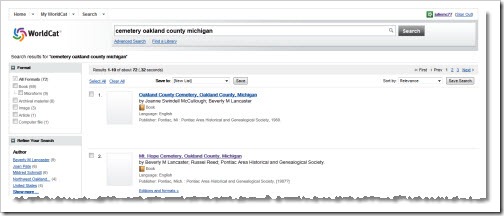
WorldCatWorldCat is a online catalog of collections from participating libraries.  It’s a good place to search for books to see what’s available.  Each book listing provides a list of libraries that have that book in their collection.  Here’s an example.  Let’s say I want to see if there are books that contain cemetery records for Oakland County, Michigan.  I used the search string cemetery oakland county michigan and found 72 results.
WC1

The second entry is for Mt. Hope Cemetery, which is a cemetery of interest.  When I look at the listing for the book, I can see what libraries near me have the book. 

WC2

Unfortunately, the nearest library is 138 miles away. But if one of these libraries circulates this book, I may be able to get it through inter-library loan at my local library. The listing also tells me the publisher of the book, which happens to be the Pontiac Area Historical and Genealogical Society.  I may be able to contact them and see if they have the book available for sale. 

If I found a book that had been published prior to 1923, I would try to see if I could find a digitized copy through Internet Archive, Google Books, or HathiTrust (more on these sites in a few moments).  Or I might see if I could find a used copy to purchase from websites like Amazon, eBay and Half.

The other nice thing about WorldCat is that you can create an account and save books of interest to your account (you can even create lists to categorize your books, for an example, you can view my profile page here).

Genealogical and Historical Societies – Many research-related books, especially the books that are indexes to records or that contain transcripts or abstracts of records, are compiled and published by genealogical and historical societies in the interest of preserving records and history.

Let’s say that I do extensive research across the state of Colorado.  I might check out the Colorado Genealogical Society website to see what publications they have that may help me in my research.  If I find something of interest, I could do one of a few things:

  • Purchase the book from the society.
  • Search WorldCat (discussed above) and see if I can get the book from a nearby library or through inter-library loan.
  • Search for a used copy to purchase.  (Note:  While I’m all for supporting genealogical and historical societies by purchasing their books, sometimes I simply cannot afford the price tag.)

Don’t forget the check out national, regional, state, county, and town societies to see what books the may have published.  If they don’t have a website, call or email them.  They should have a listing of publications that are for sale, even if they have to send it to you via snail mail.

Internet Archive, Google Books, and HathiTrust – These websites contain digitized copies of books that are no longer under copyright.  Their scope is very broad, meaning that the digitized books cover more than genealogy and history.  While you certainly can find books by using keywords, I find that it’s usually better to have a title to search on.  But, absent a specific title and looking for books on the history of Ontario County, New York, I searched on the string ontario county new york history on each of the websites.

On HathiTrust I received four results.  The first one certainly looks promising.

Hathi1

On Google Books, using the same string ontario county new york history, I received 262,000 results, although the first three on the list were very relevant.  A modified search string of "ontario county" and "new york" and history narrowed it down to 45,100 results.  Like with any Google search, you may need to play around with search terms to narrow the field to the most relevant results.

GB1

Also, keep in mind that Google Books contains information on non-digitized books in addition to those they have digitized, so it’s also good for finding books on a subject, even if it’s not digitized.  And, if you are a Google user, you can create bookshelves and save the books you find.

On Internet Archive, using the original search string of ontario county new york history, I received 16 results.  All look promising, but there are duplicates (this happens when more than one institution digitizes the same book).

IA1

Family History Books – If I remember correctly, this project used to be hosted through Brigham Young University.  Family History Books is now available through FamilySearch and continues to grow by leaps and bounds having now partnered with institutions beyond BYU and the Family History Library.  Unlike the three website we just discussed, this website contains digitized books specific to family history.  The collection includes compiled genealogies, county and local histories, gazetteers, and even genealogy magazines and how-to books.

Using the same search for books related to the history of Ontario County, New York, I used the same general search string ontario county new york history and received 6,705 results.  Many of the results seemed irrelevant.  So I tried using quotation marks and the word and (then the + sign) and while the results narrowed down considerably, there was still a lot of irrelevant results.  So I used the search string “ontario county” and came up with 598 results.  This of course broadened it beyond a county history, but the results were at least centered on Ontario County (in and out of New York).  The website is in Beta, so maybe there will be some improvements to the search in the future. 
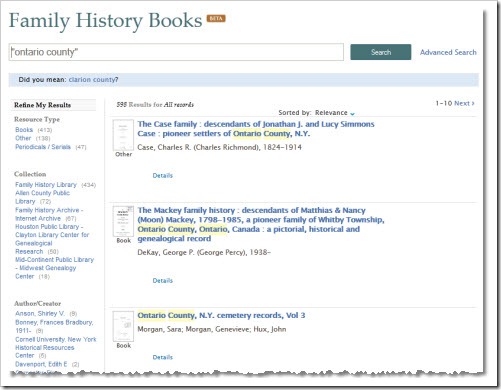
FHB1

I did try the advanced search once I was able to get an idea of how the subjects were constructed (originally my subject searches were going nowhere).  That narrowed down the pool considerably to any subject that contained “New York, Ontario.”  I wish it was set up like the FHL card catalog; I think that would make finding things much easier, but perhaps I just haven’t played around with it enough.

FHB2

Search Engines – Another way to find book titles is to do an internet search using your favorite search engine.  For example, I wanted to see what books exist for the War of 1812.  I’m looking for general references to learn more about the war itself, not tied to anything in particular, so I used the search string “war of 1812” book

Google

While my Google search returned books for sale at Amazon and those digitized by Google (or others), there were some interesting search results.  One of the first ones was an article in the Washington Post that talked about three different books on the subject.  I also found a War of 1812 website that had a listing of several books, with links to the Amazon descriptions, as well as reviews.

Where to Purchase Books

Popular books, such as genealogy “how-to” books, can be purchased through many retailers both online and at the brick and mortar stores.  My favorites are Amazon and Barnes and Noble.

Genealogical Publishing Co. specializes in genealogy and history books.  In some cases these books are new or recently published books, while other times they are reprints of those previously-out-of-print books such as compiled genealogies.

For hard-to-find or out-of-print books, used copies may be the only way to go.  You can purchased used books through Amazon, eBay, and Half.  I like Half because I can set up a wish list and I will be notified by email when a book is posted for sale.  I can usually find a good deal this way.  With eBay you can save your searches and get notified by email when a new item matching your search becomes available.

And don’t forget the genealogical and historical societies we discussed above!

One Final Tip

Several months ago, I was introduced to a website called Goodreads.  It’s similar to a website that I was previously familiar with called LibraryThing.  While I joined LibraryThing, I didn’t really get into it and never invested the time in it.  Things may have changed in the last few years since I visited it, so it may be something you’d like to explore.

Anyway, I really got into Goodreads.  I found it very easy to keep track of my own book inventory, as well as books that I want to read but do not own (for instance I have tags for where I can obtain the book such as Amazon or the library).  I also get to keep track of the progress I make on a book I’m reading, as well as provide a rating and a review when I’m finished.  Keeping an inventory also helps me to not buy a book I already own (or borrowed from a library and read), which I have done in the past.

But the best thing I’ve found is that I can see what my friends are reading (or want to read).  I get to see how they rated a book and what they thought of the book if they provided a review.  I’ve discovered several genealogy-related books that I may not have otherwise found, and I can quickly add them to my “Want to Read” list.

I’m still working on getting my inventory logged.  It takes some time, but I do a little bit each day.  And I also created tags so I know if I own the hardcopy, the Kindle version, or a PDF (such as those I’ve downloaded from Internet Archive and Google Books).  This way I know what I have and more importantly, where it is!

If you are using Goodreads and we are not friends already, feel free to friend me.  Same goes for those who decide to start using the site in the future.  Earlier in this post I provided a link to my Genealogy General Reference book list; you do not have to be a Goodreads member to view it.  You can visit my profile and peruse all of my bookshelves, but here are a few links to my genealogy-related shelves in case you’re interested.

I hope you got some good ideas and tips from this blog post.  If you have ideas you’d like to share, I'd love to hear them, so drop me a comment!


Share/Bookmark

Tuesday, January 22, 2013

Using the Kindle Fire for Genealogy – GedFamilies

Last April, I posted about the Families app that was designed to work with the software Legacy Family Tree.  Since I use Legacy, I spent the $15 for the Families app and was thrilled.  I always have my database with me.  And, as I mentioned in the April post, it was the only thing I used during my week at the Family History Library in Salt Lake City, Utah.

GedFamiliesA few months ago, the company that developed Families released GedFamilies (Android, iOS, $7.99).  From what I can tell (based on the product description, screenshots, and the “test drive” I took on Amazon) it is nearly identical to Families.  The big difference between the two apps is that Families only works with Legacy Family Tree databases, while GedFamilies works with a GEDCOM file.  That basically means that if you use ANY genealogy database software that can generate a GEDCOM 5.5.1 file, you can use the GedFamilies app and have your family tree on your Kindle Fire.  Just like the Families app, you will need to download and install a syncing program on your computer.
If I wasn’t using Legacy and the Families app already, I would certainly be jumping all over this app.  Since Families and GedFamilies are nearly identical, and the syncing process is almost the same, be sure to read my post about the Families app to get a better idea of how and why I use it.

See also:


Share/Bookmark

Monday, September 3, 2012

Link Collection to Various Genealogy & History Resources Online

link I spent the better part of last week reorganizing my link collection on Diigo.  Diigo is a free social bookmarking website that allows you to save your bookmarks and access them anywhere.  You can also share your bookmarks with others, organize them into lists, tag them, provide a description, and annotate or highlight passages on the website.  I’ve been using Diigo since 2008 and was “sort of” organized, but as I’ve gotten back into my research lately, I noticed that the links were not as organized as I thought.  Now, I have a list for each state, a few other miscellaneous lists, and my tags are all consistent now.  You are welcome to take a look at my collection by visiting the link here, or using the link that is now in the menu bar of this blog.

menu

While this is my own personal library of online resources, I’m sure there are plenty that could help you with your own research.  Want to find resources for genealogy research in Illinois?  There’s a list for that!  How about Luxembourg?  There’s a list for that too!  Some list are more robust than others and I will continue to add resources as I find them.  Be aware, not all of these links contain actual records or indexes.  While some of them do, many of them also serve as references to find offline materials, including library and archives catalogs, descriptive inventories, finding aids, etc.

In addition to sorting all my links using lists, I also fixed all of my tags so they were consistent and there wouldn’t be three different tags saying essentially the same thing.  I literally had this done two weeks ago, and then I came across an interesting post by Lori Thornton about tagging items in LibraryThing.  Lori writes about a tip she learned from Jeff Haines and it inspired me to change the format of some tags, specifically places names and family names.  So, for example, if you were looking for everything tagged with Chicago, it’s actually under a tag labeled IL:Chicago.  This way, the state is identified (helpful with those pesky repeated town and county names) and they fall in alphabetical order by state.  Family names are similar in that they are tagged as family:Miller, for example.  (A big thanks to Lori and Jeff for this tip…it could not have come at a better time!!)

I chose Diigo as my social bookmarking tool because of its many features, including the ability to create lists and tags for better organization.  But I think the best features are the highlighting and annotating capabilities.  For example, I have a link to a church history book available on Internet Archive.  Months from now, I may not remember why the heck I bookmarked it, so I created an annotation (a little note to myself, and maybe even other researchers) that it was the church that my third great-grandparents were married in.

annotation

As you can see, the annotation appears in my list of links.  In addition, when I am on the website and open my Diigo toolbar (downloadable browser add-on to quickly save links), there is a note icon that appears and when I click on it, the annotation is displayed.

annotation1

Here’s another example.  On the New York State Comptroller's Office Revolutionary War Accounts and Claims page of the New York State Archives website, I have highlighted three passages and made an annotation.  From my link list, you can see all of my references.  Then, on the actual website, again using my Diigo toolbar, I can see where the note is located (clicking on it will expand the details) and see each of my highlights.

annotation2 

annotation3

Another feature that I like is the ability to make a bookmark or a list private.  I do have a few links that are private.  For example, I had a link to a website about the batillion my great-grandfather served in during WWII.  However, when I was cleaning up my links, I noticed that the website was down.  I’m not sure why it’s down, but I didn’t want to lose the link, especially since I have used the website as a source in my research.  So I made it private for now.  Some other links that are private are simply because of the extensive annotations and/or highlights that I don’t want to share right now.  I also have a list called Personal Research, which I have made private.  Other than that, everything else is open for anyone to see.

As you can see, not only does Diigo serve as a link collecting tool, it can be used as a powerful research tool, and best of all, it’s free!  If you’re looking for a way to organize your online library, I encourage you to check out Diigo.  And be sure to check out my link library to learn about various resources I’ve found over the years.


Share/Bookmark

Thursday, April 26, 2012

1940 Census Tip – Don’t Be Fooled

The Scenario

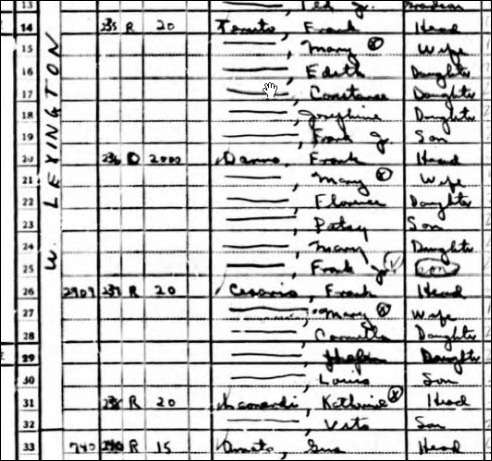
Members of the Miserentino family are known to be at 2909 W. Lexington, Chicago, in 1930 and 1951, meaning they’re bound to be enumerated there in the 1940 census.

The Search

After locating the correct enumeration district (102-1599), a page-by-page search was conducted looking for the address 2909 W. Lexington.  The residence was found on sheet 10A with two unknown families living there.  The Miserentino family was not listed.

I almost gave up.  But I KNEW they had to be there since I had placed them there on either side of 1940.  Then in dawned on me…all those pages at the end of the enumeration district that seemed random, which I initially noticed when searching for names in a particular area (as opposed to an address) and further embedded in my brain from indexing these pages.

So on to the last page I went, working backward, looking again for 2909 W. Lexington (while also scanning the surnames).  Bingo, on Sheet 63B, the family is listed at the Lexington  address.

The Moral

You’ll notice that at the end of most enumeration districts, there is a hodgepodge of residences that are “out-of-order” by address and/or household number.  In the above example, the order of households is 230, 228, 239.  You should also note that on the sheet that is “in-order,” household 239 is missing (235, 236, 237, 238, 240).  This is usually the indication you would need to prompt you in looking at the end of the ED for the missing household.  Of course, the address you are looking for may be missing entirely from the “in-order” households because only one family (or household) resided there.  Even if there aren’t any missing household numbers at or near the address you’re looking for, you should still check the end of the ED just to make sure.

This observation also means you should pay attention once the census is indexed.  When you conduct a search using the index, it will take you to the page that the person is on.  In this case, my search (hypothetically) for Joseph Miserentino would have brought me to Sheet 63B, which is in the “out-of-order” households.  This means that if you find and “out-of-order” household, you should look back to the place where they would have been enumerated in sequence to see who else may have lived in the same house/building and who their neighbors were.  If there is a household number in these “out-of-order” households, use that as your guide to finding the original sequence.  Otherwise, start from the beginning of the ED and look for where the address would have occurred in sequence.


Share/Bookmark

Friday, April 13, 2012

Using the Kindle Fire for Genealogy – Ancestry

(This post was updated on 22 January 2013.  Updates are in blue.  Also note that the screenshots in this post vary slightly from the current version of the app.)

You may be aware that Ancestry.com developed a mobile app.  The Ancestry app (Android, iOS; free) is essentially a bridge to your online Ancestry family trees (public, private, and those share with you).  It’s a good app, and mimics the look and feel of your online tree.  You can view your tree, add to it, and edit information.

Kindle-ancestry

I did notice from the reviews of the app though, that there seems to be a misconception about what the app is intended for.  Many people thought that the app was supposed to help you do your research, by granting “free” (remember, the app itself is free) access to Ancestry’s records, Kindle-ancesry1providing you with your dashboard of recent message board posts or recent Member Connect activity, and/or showing you the shaking leaves in your tree for research hints.  Make no mistake, the app does NOT do these things, nor do I believe it ever will.  UPDATE:  The app now shows the shaking leaves for which you can take action on, just as you would if you were on your computer.  But remember, you only have access to the records that are part of your subscription to Ancestry.  Personally, I think it is very difficult to work on the hints using the Kindle (or any mobile device) because it’s hard to maneuver in very little real estate. 

Another thing I noticed, that I don’t believe was available when I wrote this post originally, is that when you click on the little source box (third tab in the image at the right), you will see a list of sources and from there you have the option to “Search ancestry.com to find historical documents about [person’s name].”  All this does is launch your Kindle’s browser and provides a list of search matches.  At this point, you are no longer in the app.  And again, you only have access to records that fall under your Ancestry subscription category.  And while viewing these records is possible, depending on what it is, it’s often very hard to really work with and analyze the record in the limited amount of space.  But, you can save things to your shoebox to review at a later time.  I still believe that the main intent of the Ancestry app is to provide you with easy access to the data stored in your online Ancestry tree.

Why use the Ancestry app?  Plain and simple:  you have access to all your data (assuming your online Ancestry tree is up-to-date) wherever you are.  And assuming you’ve downloaded your tree from the app, it’s still accessible even if you’re offline (you cannot edit it, however, without an internet connection—this is still true).

While I prefer the Families app over the Ancestry app, if I solely used Ancestry for the primary storage of all my research, I’d be singing a different tune.  The app is visually nice and as I mentioned, functions much the same way as the online version of the Ancestry tree.  It’s pretty easy to use, but I was bummed that you can’t make updates to it without being online.  Since it downloads the data when you access the tree (while online) I figured it would allow you to change it and it would save it to the device and sync when you’re next online, but no such luck, even today.  Maybe that will be an update down the road.

If you only use (or primarily use) Ancestry.com to keep track of all your data, then I would certainly recommend the Ancestry app.  Hey, it’s free and it functions well, why not give it a try!

Do you use the Ancestry app?  What has your experience been like?  Drop me a comment and let me know.

See also:


Share/Bookmark

Thursday, April 12, 2012

Using the Kindle Fire for Genealogy – Evernote

Kindle-evernote If you have a mobile device and you use Evernote for any aspect of your genealogy research (or writing), you should also be using the Evernote app (Android, iOS; free).  The app syncs with your online notebooks, allowing you to have access to all that information wherever you are.

Even if you are offline, you can access the information that was stored since your last sync.  You can also make changes and add new notes while offline and it will all sync up next time you’re connected to the internet.

What I love about the Evernote app is that no matter where I am when a though strikes me, I have my notebooks available.  Sometimes if I’m going over a research problem in my head while away from my computer, I can open the Evernote app and review the information I’ve collected or add new thoughts.  I’ve also started to use Evernote to create article outlines and drafts so that I have access to them anytime the spirit moves me (I literally started drafting two of the blog posts in this series Sunday night will watching TV before bed, on my Kindle Fire using the Evernote app).

And did you know that you can send stuff to your notebook while roaming around your Kindle Fire?  In an earlier post I talked about gReader, which I use to sync with my online Google Reader.  If you press and hold on a post from gReader and choose “Send to…,” Evernote is an option.  If you’re in the browser, tap the menu button and choose “Share page” to create a note in  Evernote.

Kindle-evernote1

I’m still fairly new to Evernote in general (although I’ve used OneNote for several years).  So I imagine I will find even more uses for it as I continue to experiment.  And to be honest, I think the web capture capabilities of Evernote and the web app are what sold me on it.  If you don’t use Evernote, I encourage you to take a look at Thomas MacEntee’s explorinar in which he shares several features and uses.  I’m sure it will give you plenty of ideas on how you can use this tool in your research.

Have you tried the Evernote app?  How do you use Evernote (online, desktop, app) for your genealogy research?  What other things do you use it for?  I’d love to hear your thoughts, so leave a comment.

See also:


Share/Bookmark

Wednesday, April 11, 2012

Using the Kindle Fire for Genealogy – gReader

Reading genealogy blogs is important to me.  I find all sorts of useful information, such as genealogy news, research tips, useful resources, and interesting family stories. 

Kindle-greaderFor the last year or so, I was finding it very difficult keeping up with all the genealogy blogs I follow.  It was a combination of a lack of time and the fact that I don't like to sit in front of my computer and read.  I'd fall months behind and was missing a lot of useful information.  I've since found a solution and am now able to stay on top of all the blogs I follow, including non-genealogy blogs.

I added the app gReader (for Android, free), which seamlessly syncs with my web-based Google Reader.  I can do everything in this app that I can do in Google Reader, including starring, tagging, and sharing.  I can also modify subscriptions, rename folders, and subscribe to new feeds.

This particular app appealed to me because the Google Reader app (by Google) was not available for Kindle Fire (it still isn’t as of this posting) and gReader had the best reviews relative to what I was looking for.  I’m very satisfied with it.  I’ve had no problems syncing and I like the interface (I actually prefer it over Google Reader on the web).  There are several ways to customize the interface to make it operate to your particular preferences (e.g. arranging the order of the feed).

A quick note about posts that show up as either title-only or preview-only.  In order to view the entire post, you need to switch to the “web” view.  This is found in the top right corner of the gReader screen.  Below is an example of the “feed” view (left) and the “web” view (right) of the same post.

Kindle-greader-web Kindle-greader-web1

I can read blog posts periodically throughout the day if I choose, or once a day, usually in the evening before bed.  I can't believe how much this simple tool has helped me stay up-to-date on my blog reading.  If you have an Android device, I highly recommend you give gReader a try.

Do you use gReader or another RSS reader app on your phone or tablet?  What do you use and why do you like it?  Leave a comment and let me know.

See also:


Share/Bookmark

  © Copyright 2008~2013. All rights reserved.

  © Blogger template 'Minimalist E' by Ourblogtemplates.com 2008

  Social media icons are from GraphicsFuel.com

Back to TOP  

Related Posts Plugin for WordPress, Blogger...